Table of Contents
ToggleWhether you’re settling in for a gaming marathon or just browsing the Xbox dashboard, your remote control is the gateway to everything your console does. But not all Xbox One remotes are created equal, and figuring out which one you need, and how to get it working properly, can be surprisingly confusing. This guide breaks down everything you need to know about Xbox One remote controls, from pairing and setup to troubleshooting common issues and unlocking hidden features. By the end, you’ll have the knowledge to maximize your console experience and keep your remote running smoothly.
Key Takeaways
- Choose between the Xbox Wireless Controller for gaming or the Media Remote for streaming, or use both for maximum flexibility.
- Pairing your Xbox One remote is straightforward—use the Bind button for the Wireless Controller or the Home button for the Media Remote, and keep fresh AA batteries on hand.
- Fix common Xbox One remote issues like unresponsive buttons and input lag by replacing batteries, cleaning the remote, and restarting your console or checking for interference.
- Regular maintenance including compressed air cleaning, firmware updates, and proper storage extends your remote’s lifespan and keeps it performing at peak responsiveness.
- Customize your Xbox One remote through button remapping and accessibility features to optimize your gaming experience and accommodate different playstyles or physical abilities.
Understanding Xbox One Remote Control Options
Xbox One actually comes with two primary remote control options, and understanding the difference between them matters. You’ll want to choose based on how you primarily use your console, whether that’s gaming, streaming, or a mix of both.
Official Xbox Wireless Controller vs. Media Remote
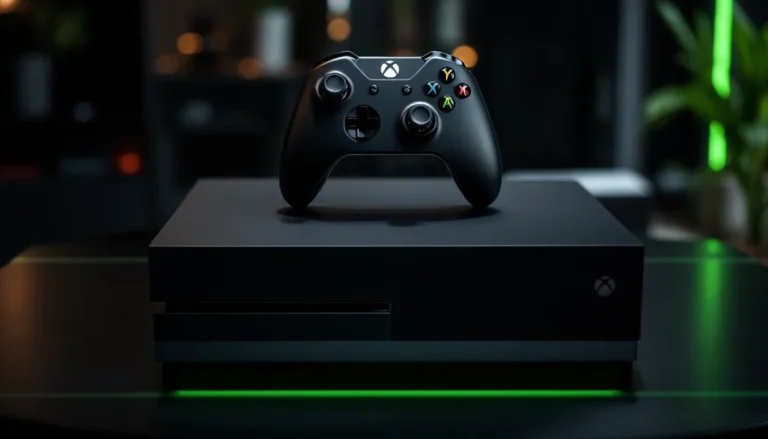
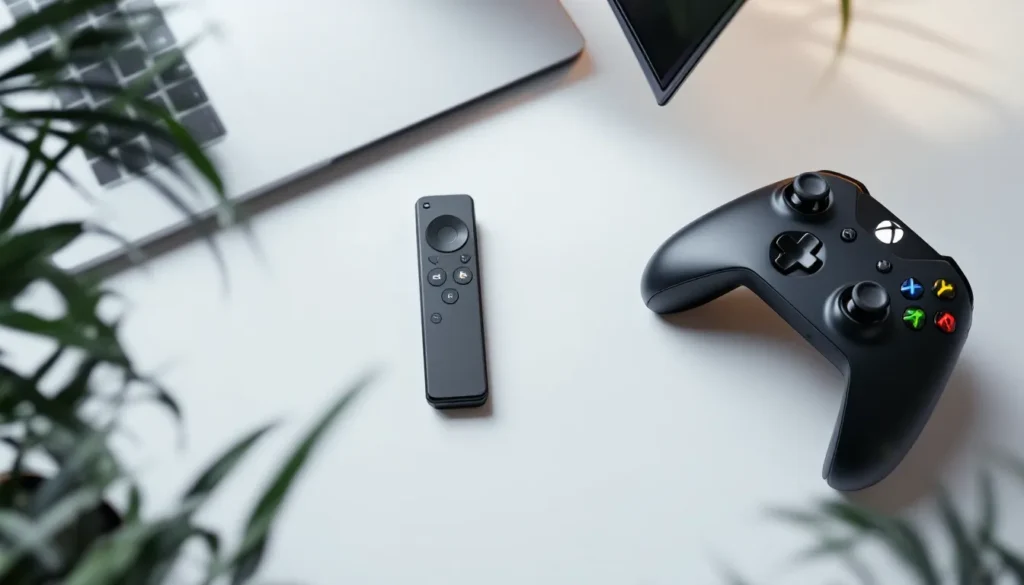
The Xbox Wireless Controller is the standard controller bundled with Xbox One consoles. It’s designed for gaming first, with dual analog sticks, triggers, bumpers, and the full button array you need for virtually every game in the library. The controller uses Bluetooth connectivity and features a hybrid D-pad that switches between digital and analog inputs. Battery life typically runs around 30 hours on AA batteries, though newer Elite models offer rechargeable batteries.
The Media Remote is a sleeker, more minimal option designed specifically for navigation and media playback. It lacks the gaming buttons entirely, focusing instead on directional navigation, a menu button, back button, and media controls like play, pause, and volume. It’s perfect for someone who uses their Xbox primarily as a media hub, streaming through Netflix, Hulu, or Game Pass. The Media Remote is significantly cheaper than a controller and takes AA batteries as well.
For gaming, you absolutely need the Wireless Controller. The Media Remote simply doesn’t have the necessary input options. But if you’re splitting time between gaming and streaming, having both on hand creates flexibility.
Third-Party Compatible Remotes and Alternatives
Beyond the official options, there’s a surprisingly robust ecosystem of third-party controllers that work with Xbox One. Companies like 8BitDo, PowerA, and Scuf manufacture controllers that offer similar functionality to the official Wireless Controller, often with additional features like programmable buttons or improved ergonomics.
8BitDo controllers, for example, use Bluetooth and work across multiple platforms, Xbox, Switch, and PC. PowerA’s offerings range from budget-friendly wired controllers to premium wireless options with customizable button mapping. Scuf controllers cater to competitive gamers with hair-trigger locks and back paddle configurations.
One important note: not all third-party controllers have full parity with official controllers. Some may lack certain vibration features or have firmware compatibility issues. Before purchasing, check that the specific model explicitly lists Xbox One compatibility on the packaging and recent reviews. TechRadar and similar gaming hardware outlets regularly test and rank these alternatives if you want an in-depth breakdown.
How to Pair Your Xbox One Remote
Pairing is usually straightforward, but the exact steps depend on which remote you’re connecting. Let’s walk through both scenarios so you know what to expect.
Pairing the Official Xbox Wireless Controller
The Xbox Wireless Controller pairs using a dedicated wireless protocol (not Bluetooth), which makes the process quick and simple.
Steps to pair:
- Power on your Xbox One console.
- Insert two AA batteries into the back of the controller, or connect the included USB charging cable if using a rechargeable battery pack.
- Press and hold the Xbox button (the center button on the controller) until it vibrates. It should light up solid white.
- Simultaneously, press and hold the Bind button on your console (usually a small recessed button on the front or side, check your specific model).
- The Xbox button on the controller will blink. Once it stops blinking and lights solid, the pairing is complete.
If the controller doesn’t pair after 30 seconds, try unplugging the console’s power supply and waiting 10 seconds before plugging it back in. Then repeat the pairing steps.
If you’ve previously used this controller on another Xbox One, the pairing should happen automatically when you power it on. The console recognizes the device and connects instantly.
Connecting a Media Remote to Your Console
The Media Remote pairs differently because it uses Bluetooth instead of the proprietary wireless protocol.
Steps to pair:
- Power on your Xbox One.
- Insert two AA batteries into the Media Remote.
- Press the Home button on the Media Remote. The Xbox One should automatically enter pairing mode and recognize the device within 20-30 seconds.
- Look for a pairing confirmation on your TV screen. Once confirmed, the remote is connected.
Alternatively, if auto-discovery doesn’t work, navigate to Settings > Devices & Accessories > Remote > Add Remote on your console. This opens manual pairing mode and allows you to connect the Media Remote through the settings menu.
Both the Wireless Controller and Media Remote will stay paired even after powering down the console. You won’t need to re-pair them each time unless you explicitly unpair them or reset the console.
Essential Remote Control Features and Functions
Now that your remote is paired, it’s time to learn what each button does and how to get the most out of your Xbox One experience.
Navigating the Xbox One Dashboard and Apps
The dashboard is where you spend a lot of time, especially if you mix gaming with streaming. The D-pad or directional buttons move your cursor left, right, up, and down across menu options. The A button (the green button) selects highlighted items, while the B button (red) goes back to the previous menu.
The Menu button (the three horizontal lines) opens context-specific options for whatever you’re highlighting. The View button (two stacked rectangles) toggles between different view modes in some apps. The Xbox button in the center brings up the quick menu from anywhere, showing battery percentage, connected devices, and quick-access options.
The Guide button (same as the Xbox button) can also be long-pressed to bring up power options or snap different apps side-by-side if you want to multitask.
For the Media Remote specifically, this experience is streamlined. You get directional navigation, a menu button, a home button to return to the dashboard, and dedicated buttons for play, pause, and volume. Navigating apps like Netflix or Game Pass is fluid and responsive with the Media Remote.
One pro tip: if you’re using the Wireless Controller for navigation instead of gaming, the same buttons apply, but you’ll also have access to the analog sticks. Some apps and menus support analog stick navigation, which can feel more natural than the D-pad for certain content.
Gaming Controls and Performance Features
The Wireless Controller is where gaming really comes alive. You get dual analog sticks for camera and movement control, LT and RT triggers for shooting or accelerating (with variable pressure sensitivity), LB and RB bumpers for ability activation or weapon switching, and the standard A, B, X, Y button layout.
Each game maps these buttons differently. In first-person shooters, RT is typically fire, LT is aim-down-sights (ADS), and LB/RB handle equipment or grenade throws. In racing games, RT accelerates and LT brakes. Sports titles often use the bumpers for special moves or turbo boosts. The exact layout varies, but most modern games follow predictable conventions.
The triggers also feature impulse triggers, a haptic feedback system that delivers tactile responses during gameplay. When you fire a weapon, reload, or feel an impact, the triggers rumble or pulse in response. Rumble intensity varies by game and console settings. If rumble feels overwhelming, you can dial it back in Settings > Devices & Accessories > Controller > Advanced Settings > Vibration Intensity.
Input lag on the Wireless Controller is minimal, typically under 100 milliseconds, which keeps fast-paced games feeling responsive. If you’re serious about competitive gaming, ensure your controller isn’t suffering from battery drain: a weak battery can introduce subtle lag that throws off your timing.
Voice Command and Smart Features
Xbox One supports voice commands through the Kinect (if you have one) or compatible headsets. You can hold down the Xbox button on the controller and speak commands like “Go to settings,” “Launch Game Pass,” or “Record that.” Voice commands can speed up navigation significantly if you get comfortable with them.
Not all commands are reliable, and the feature depends on your console having a microphone available (either through Kinect or a connected headset). Accents, background noise, and unclear enunciation can cause misrecognition, so voice commands aren’t a complete replacement for button input.
Smartphone integration is another option. The official Xbox App on iOS and Android includes a companion remote that mirrors your Wireless Controller’s input. This is useful if you’ve misplaced your physical remote or want to navigate from the couch while your hands are busy. The app remote works over WiFi, so latency is generally acceptable for navigation but not ideal for gaming.
Common Xbox One Remote Issues and Solutions
Even with proper setup, remotes eventually act up. Here’s how to diagnose and fix the most common problems without frustration.
Remote Not Connecting or Pairing
If your remote refuses to connect, the first step is confirming the batteries have charge. Weak or dead batteries are the #1 culprit. Replace them with fresh AA batteries and try pairing again.
If batteries aren’t the issue, restart your console. Power down completely (not standby mode), unplug the power cable, wait 10 seconds, and plug it back in. This resets the Bluetooth/wireless stack and clears pairing glitches.
For Wireless Controllers, hold the Bind button on the console while powering it on. The console enters pairing mode and should detect the controller automatically. If the controller’s lights flash erratically or don’t respond, the internal battery might be failing. Rechargeable battery packs degrade over time, typically after 2-3 years of use.
Internet connection issues don’t typically affect pairing (since it’s wireless, not network-dependent), but they do affect app navigation and streaming. If your remote pairs fine but Xbox Live features are slow, that’s a network issue, not a remote problem.
As a last resort, reset the console to factory settings. Navigate to Settings > System > Console Info > Reset Console. This erases all data, so back up your saves first. A factory reset resolves persistent pairing problems caused by corrupted system files.
Unresponsive Buttons and Input Lag
If certain buttons feel sluggish or don’t respond on the first press, start by cleaning the remote. Dust and debris accumulate around button seams over time, causing contact issues. Use compressed air to blow out the gaps between buttons. For stubborn grime, lightly dampen a microfiber cloth with isopropyl alcohol and wipe the button surfaces. Avoid spraying liquid directly into the remote: dampness inside can damage circuits.
Input lag, where the controller responds noticeably slower than expected, usually stems from low battery. When a controller’s batteries drop below 50%, the wireless transmission can become less stable. Replace batteries as soon as the console notifies you.
If lag persists after replacing batteries, interference might be the culprit. Wireless routers, microwaves, and even USB 3.0 devices can interfere with the 2.4GHz frequency that Xbox Wireless uses. Move your console away from these devices or switch your WiFi to the 5GHz band if available.
For Media Remotes, unresponsive buttons often indicate failing buttons. Unlike Wireless Controllers, which have replaceable components, Media Remote buttons are soldered to the circuit board. If buttons aren’t responding even though fresh batteries and cleaning attempts, replacement is the most practical solution. Repair costs exceed the remote’s original price, so buying new is usually better.
One more thing: some games deliberately disable certain controller inputs for specific scenarios (like cutscenes where only the A button works). This isn’t input lag, it’s intentional design. You’ll know because the issue is context-specific to certain games.
Battery and Power Management Problems
Battery life depends on several factors. Wireless Controllers with AA batteries typically last 30 hours of active use before requiring replacement. Exact duration varies based on rumble settings, button-mashing frequency, and controller age. Older remotes might not hold charge as long due to internal battery degradation (if rechargeable).
If your controller drains batteries unusually fast, say, a week or less, check the rumble settings. Strong vibration feedback pulls more power. Dial back vibration intensity in Settings > Devices & Accessories > Controller > Advanced Settings, or disable it entirely if you don’t need it.
Rechargeable battery packs (sold separately or included with some controller bundles) offer convenience but eventually lose capacity. After 500+ charge cycles, expect about 20% reduced runtime. If your rechargeable pack only lasts 10 hours instead of 25, that’s degradation, replacement packs are inexpensive and worth the investment.
For extended play sessions, always keep spare AA batteries on hand. Having a second set charging or ready ensures you never run out mid-session. Some players keep their controller plugged into a USB charging cable during play, which delivers continuous power. This works, but it limits your movement range unless you use an extra-long cable.
The Media Remote’s battery life is generally similar to the Wireless Controller’s, around 30 hours per set of AA batteries. Since the Media Remote uses less power (no rumble, no dual analog sticks), it might stretch closer to 40 hours in light use.
Maintenance Tips for Longevity
A well-maintained remote lasts significantly longer and performs better. Simple preventive care pays dividends.
Cleaning and Care Best Practices
Dust is the enemy of electronics. Every month or two, use compressed air to blow out the gaps between buttons and around the seams. Hold the remote steady and use short bursts, don’t hold down the trigger continuously, as that can force dust deeper into the device.
For sticky buttons, which sometimes happen after spills or extended use, dampen a cotton swab with isopropyl alcohol (70% concentration is ideal) and gently clean around the button edges. Don’t force the button or apply excessive pressure. Let the alcohol evaporate completely, wait a few minutes, before using the remote again.
Avoid submerging the remote or spraying liquid directly on it. Water and electronics don’t mix, and Xbox One remotes aren’t waterproof. If you accidentally spill liquid on the remote, power it off immediately, remove the batteries, and let it air dry for at least 24 hours in a warm, dry place before reassembling.
Store your remote in a cool, dry environment. Extreme heat (above 95°F) can degrade internal components and battery lifespan. Extreme cold (below 32°F) temporarily reduces battery performance, though this usually resolves when the remote warms up.
Drops happen. The Wireless Controller is relatively durable with a plastic shell that absorbs moderate impact. A fall from couch height onto carpet usually doesn’t cause damage. But, hard surfaces and great heights can crack the casing or damage internal components. If your remote gets dropped and suddenly stops responding, it likely has internal damage, replacement is probably necessary.
Handle the remote gently during gameplay, especially during intense moments. Button mashing during competitive matches is tempting, but it accelerates wear. The buttons are rated for millions of presses, but aggressive play shortens their lifespan.
Firmware Updates and Compatibility
Xbox One controllers periodically receive firmware updates through the console. When connected to your Xbox One, the controller checks for available updates and installs them automatically in the background. You’ll typically see a notification saying the controller is updating.
Firmware updates often improve wireless stability, enhance battery efficiency, and fix compatibility issues with newer games. Occasionally, updates introduce new features or refine existing ones. It’s uncommon for an update to cause problems, but if your controller behaves oddly after an update, try unpairing and re-pairing it.
When you connect an older controller to a newer console generation (or vice versa), firmware mismatches are rare but possible. The console automatically handles most compatibility scenarios. If you’re using a controller from an Xbox 360 on Xbox One, compatibility is not guaranteed, those are fundamentally different wireless systems. But, Xbox One controllers work on Xbox Series X
|
S consoles without any special steps.
Third-party controllers have their own firmware update processes, usually handled through the manufacturer’s app or software. Check the specific controller’s documentation for update instructions. Not all third-party controllers receive regular updates, so lifespan and bug fixes vary.
One final compatibility note: Media Remotes are generally interchangeable between Xbox One and Xbox Series X
|
S consoles, and even some older Xbox devices. But, the very latest Xbox console updates occasionally introduce changes that affect older remotes. If a Media Remote stops working after an Xbox update, check the Xbox support forum or contact Microsoft Support for guidance, it’s usually a quick fix.
Customization and Advanced Settings
Xbox One’s flexibility extends to controller customization. You can tailor your remote to match your playstyle and accessibility needs.
Button Remapping and Profile Setup
Button remapping lets you reassign any button to perform a different action. This is especially useful if you have a disability, prefer a non-standard layout, or want to optimize for a specific game.
To access button remapping, navigate to Settings > Devices & Accessories > Controller > Button Mapping. From here, you can create a custom profile and remap every single button. For example, you could swap A and B if you prefer that layout, map X to a trigger if your fingers are more comfortable there, or disable buttons entirely if you don’t use them.
Custom profiles are stored on the console, not the controller itself, so they’re specific to your Xbox One. If you travel with your controller to a friend’s house, the custom mapping won’t transfer. You can create multiple profiles for different games, say, one profile for first-person shooters and another for racing games, and switch between them as needed.
Button remapping has minimal input lag impact since it’s handled at the system level. Remapped buttons respond just as quickly as original buttons.
Accessibility Options for All Players
Xbox One includes comprehensive accessibility features that make gaming possible for players with different abilities. Copilot Controller is one example, it allows two controllers to function as one, so a second player or caregiver can assist with gameplay without taking over completely.
For vision impairment, you can enable Narrator, which reads menu items aloud as you navigate. High Contrast Mode increases visual distinction between menu elements, making them easier to see. Text size can be enlarged system-wide, reducing eye strain.
For hearing impairment, enable Closed Captions and Subtitles in every app and game. Most modern Xbox titles support customizable subtitle colors, sizes, and backgrounds. Haptic feedback (rumble) can substitute for audio cues, when an alarm sounds in a game, the controller vibrates instead.
For motor control issues, Button Hold Options let you hold a button instead of repeatedly pressing it. Sticky Keys allows you to press multiple buttons simultaneously by holding one, then tapping the others sequentially. These settings dramatically reduce the physical effort required for gaming.
Navigate to Settings > Ease of Access to explore the full suite of accessibility options. Many of these settings are game-wide and will carry across your entire library.
When pairing a second controller for Copilot Mode, use the standard pairing process, then both players can collaborate. One player handles movement while the other manages camera or abilities, making previously impossible games playable for people who need extra support.
Accessibility features aren’t just for people with disabilities, many competitive gamers use features like remapping to optimize button placement for their hands or disabling controller vibration when they want maximum precision. Customize your setup to what works best for you, regardless of the reason.
Conclusion
Your Xbox One remote is more than just a simple input device, it’s the bridge between you and your entire gaming library. Whether you’re using the Wireless Controller for competitive gaming or the Media Remote for streaming, understanding your remote’s capabilities, maintaining it properly, and knowing how to troubleshoot common issues ensures you get years of reliable performance.
The key takeaway is that different remotes serve different purposes. Gaming demands the Wireless Controller’s full button array and precision input, while casual media consumption pairs perfectly with the minimal Media Remote. And if neither official option feels right, third-party alternatives offer specialized features for competitive play or accessibility.
Regular maintenance, cleaning, fresh batteries, and timely firmware updates, keeps your remote responsive and lag-free. When problems do arise, most issues have straightforward solutions that don’t require replacement. And if you want to optimize your experience further, customization options let you tailor your remote’s behavior to match your exact playstyle and accessibility needs.
Take a moment to review your current setup. Are your batteries fresh? Is your remote’s firmware up to date? Have you explored the customization options available? Making these small adjustments now prevents frustration later and ensures your Xbox One experience stays smooth for years to come.