Picture this: you settle in for an epic gaming session, controller in hand, ready to conquer virtual worlds. But wait—your Xbox One decides to play hard to get, leaving you staring at a blank screen with the dreaded “no signal” message. Frustration levels rise as you wonder if your console has joined a secret society of rebellious devices.
Understanding Xbox One No Signal to TV HDMI
Experiencing a “no signal” message on an Xbox One can disrupt gaming plans. This issue often stems from several common causes.
Common Causes
Incorrect HDMI connections frequently result in a “no signal” message. Faulty HDMI cables can lead to poor connections, disrupting the signal. Using non-standard resolution settings may also trigger problems, particularly if the console’s output exceeds the TV’s capabilities. Additionally, issues with the TV itself, such as incorrect input settings, sometimes interfere with signal recognition. Power fluctuations affecting the console can further contribute to this issue.
Troubleshooting Steps
Verifying all HDMI connections first ensures all devices connect appropriately. Testing a different HDMI cable helps determine if the original one is defective. Changing the TV input to the correct HDMI channel can resolve settings misalignment. Restarting the Xbox One often refreshes the system, potentially fixing signal problems. Enabling the console’s low-resolution mode provides a temporary fix during troubleshooting. Checking for firmware updates on both the Xbox One and the TV ensures devices operate with the latest enhancements.
Checking Your HDMI Connection
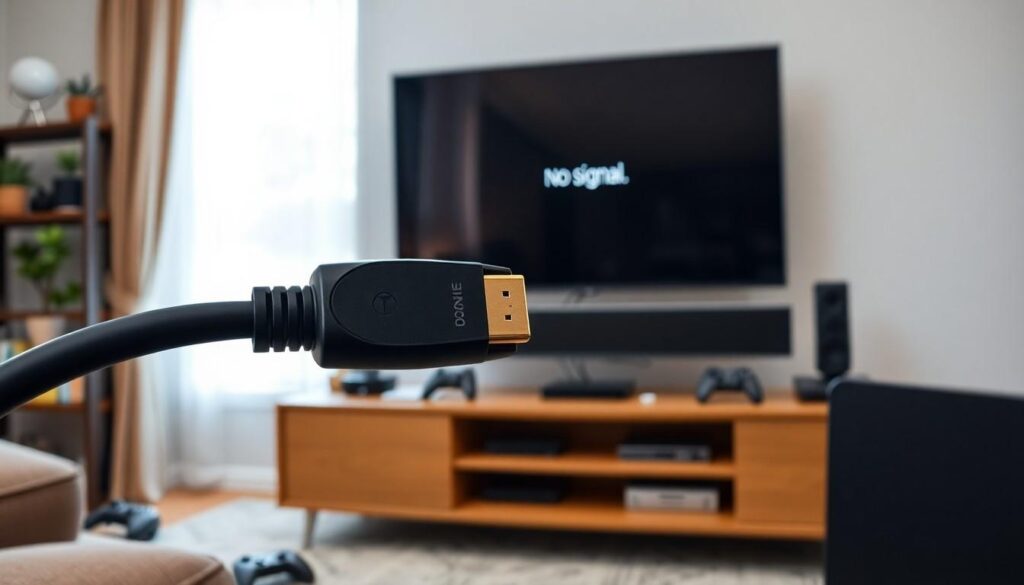
Ensure the HDMI connection functions properly as this is crucial for transmitting video and audio from the Xbox One to the TV. A simple check can often reveal the underlying issue.
Inspecting the HDMI Cable
Inspecting the HDMI cable is an essential step in troubleshooting. Look for any visible damage, such as fraying or kinks, which may impair functionality. A damaged cable often results in the “no signal” message. Verify that the cable is securely connected to both the Xbox One and the TV. Loose connections are common culprits that lead to signal issues. To rule out cable malfunction, testing with a different HDMI cable is advisable. High-quality cables minimize signal loss, enhancing overall performance.
Testing Different HDMI Ports
Testing different HDMI ports on the TV can provide insights into the problem. Connection issues may arise from faulty ports, so plugging the HDMI cable into an alternate port is worth trying. Experiment with all available HDMI ports, as they might yield different results. Ensure the TV input setting corresponds with the selected port. If an alternate port successfully displays the signal, the original port may require troubleshooting or replacement. Checking port functionality helps identify the root cause of the “no signal” issue, ensuring optimal gaming experiences.
Power Cycle Your Xbox One
Power cycling the Xbox One can often resolve the “no signal” issue. This simple process resets the console’s hardware and software, which may remove temporary glitches affecting the HDMI output.
Step-by-Step Guide
- Turn off the Console: Press and hold the power button on the front of the Xbox One for about 10 seconds until it completely shuts down.
- Unplug the Power Supply: Disconnect the power brick from the wall outlet and the console. Wait for at least 10 seconds.
- Reconnect the Power Supply: Plug the power supply back into the wall and the Xbox One.
- Turn on the Console: Press the power button again to start the Xbox One.
This sequence often restores functionality, improving connections to the TV.
Expected Outcomes
Following these steps can result in the console successfully establishing a connection to the TV. Gamers typically see the Xbox One dashboard after restarting. If problems persist, further troubleshooting steps may be necessary. A new attempt at rechecking HDMI connections could also enhance connectivity. Users frequently benefit from ensuring all settings are in order, leading to a smoother gaming experience.
Resetting Display Settings
Resetting display settings can resolve signal issues on the Xbox One. This process often restores the correct video output, ensuring a smooth connection to the TV.
How to Reset Display Settings
To reset display settings, start by turning off the console. Next, hold the Xbox button on the front of the console for approximately 10 seconds until it fully shuts down. After the console powers off, press and hold the Xbox button and the Eject button together. Keep holding these buttons until you hear a second startup chime. This action will reset the display settings to a standard resolution, which often eliminates the “no signal” issue.
Alternative Resolution Options
Exploring alternative resolution options can also help. First, check the resolution settings on the console by navigating to the settings menu if a signal is present. Select “Display & sound” followed by “Video output” to assess the current resolution. If the resolution exceeds the TV’s capabilities, adjust it to a lower setting, like 720p. Additionally, using a different HDMI cable or testing alternative HDMI ports can provide insight into any connectivity issues.
Conclusion
Experiencing a “no signal” issue with an Xbox One can be frustrating but it’s often a fixable problem. By following the troubleshooting steps outlined, gamers can identify the root cause and restore their connection. Ensuring secure HDMI connections testing different cables and ports and power cycling the console are all effective methods to resolve this issue.
If the problem persists after trying these solutions checking the display settings and resetting them can also help. With a bit of patience and the right approach gamers can get back to enjoying their favorite titles without interruption.