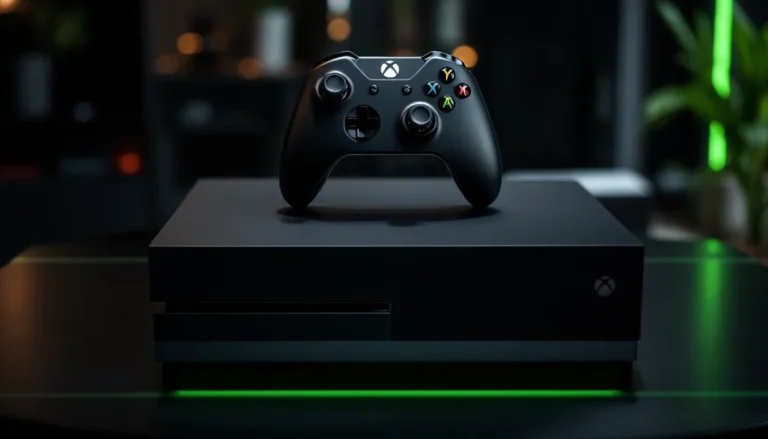
Gaming just got a whole lot easier. Imagine kicking back on your couch, controller in hand, while conquering virtual worlds on your PC. Sounds dreamy, right? Well, it’s not just a fantasy. With an Xbox One controller, players can seamlessly transition from console to computer, making every gaming session feel like a breeze.
Understanding Xbox One Controller Compatibility
Using an Xbox One controller on PC works seamlessly with the right setup. Understanding the requirements ensures a smooth gaming experience without interruptions.
PC Requirements
Compatible operating systems for Xbox One controller include Windows 7, 8, 8.1, and 10. USB ports are essential, with at least one being necessary for wired connections. Drivers are required; Windows usually installs them automatically upon connection. Bluetooth support is needed for wireless setups, and using Bluetooth 4.0 or higher guarantees optimal connectivity. Graphics capabilities impact gaming performance as well; a dedicated GPU enhances gameplay.
Xbox One Controller Variants
Different Xbox One controller variants include the original, the Xbox One S controller, and the Xbox One Elite controller. Each variant offers unique features, such as improved connectivity and enhanced ergonomics. The Xbox One S controller supports Bluetooth, simplifying wireless connectivity. Elite controllers provide customizable buttons, allowing players to tailor their gameplay experience. It’s important to consider each variant’s specific features when deciding on the best controller for PC gaming.
Connecting the Xbox One Controller to PC

Connecting an Xbox One controller to a PC enhances the gaming experience, enabling seamless play across platforms. Players can choose between wired and wireless methods for the connection.
Wired Connection
A wired connection offers a straightforward setup. Players can use a USB cable to connect the controller directly to the PC. Simply plug one end into the controller and the other into a USB port on the PC. Windows automatically detects the controller, and no additional drivers are necessary. This method provides a reliable connection with minimal latency, ensuring responsive gameplay. Users can enjoy charging the controller during play as well, making it an efficient option for extended gaming sessions.
Wireless Connection
A wireless connection provides greater freedom of movement. To set it up, ensure that the PC has Bluetooth capability. First, power on the controller by pressing the Xbox button. Next, hold the sync button on the top of the controller until the Xbox logo flashes. Then, navigate to the PC’s Bluetooth settings and select “Add Bluetooth or other device.” After selecting “Bluetooth,” choose the Xbox controller from the list. Windows will finalize the pairing. This setup offers convenience while maintaining stability during intense gaming sessions.
Configuring the Xbox One Controller on Windows
Configuring an Xbox One controller on Windows ensures optimal gaming performance. Users can follow two primary methods: automatic setup and manual setup.
Automatic Setup
Automatic setup simplifies the process. Connecting the controller via USB starts the configuration immediately. Windows recognizes the controller without any extra software. If no issues arise, drivers install seamlessly in the background. Most systems only require reconnecting the controller for future use. For those using the Xbox One S or Elite, this process remains equally straightforward. Additionally, users enjoy reduced latency during gameplay, positively influencing their experience.
Manual Setup
Manual setup offers an alternative approach for users who prefer customization. First, users must install the Xbox Accessories app from the Microsoft Store. Following installation, connecting the controller via USB or Bluetooth allows access to various configuration options. The app provides features for mapping buttons and adjusting sensitivity settings. Users can also update the controller’s firmware to ensure it meets the latest performance standards. If customization isn’t necessary, this method remains a viable option for efficient setup. Overall, manual configuration caters to those desiring a tailored gaming experience.
Customizing Controller Settings
Customizing controller settings enhances the gaming experience on a PC. Players can tailor their Xbox One controller to fit their preferences, maximizing comfort and performance in various games.
Using Xbox Accessories App
Using the Xbox Accessories app simplifies customization for Xbox One controllers. This app, available on the Microsoft Store, enables users to remap buttons easily, fine-tune trigger sensitivity, and create custom profiles for different games. Firmware updates for the controller also become accessible through this app, ensuring optimal performance. Setting up the app requires minimal effort, allowing users to focus on gameplay rather than configuration.
Key Mapping Options
Key mapping options offer numerous customization possibilities. Players can assign specific functions to different buttons, customizing controls based on gameplay style. This feature caters to individual preferences, promoting a more personalized gaming experience. Profiles can be saved, enabling seamless transitions between various games and settings. Adjusting sensitivity levels for both analog sticks and triggers allows for improved precision in action-packed scenarios.
Troubleshooting Common Issues
Occasionally, users encounter issues while using an Xbox One controller on a PC. Identifying and resolving these problems can enhance the gaming experience.
Connection Problems
Connection troubles can arise in various situations. If the controller isn’t recognized, checking USB cables or Bluetooth settings is essential. For wired connections, ensure the USB port is functioning properly. Sometimes, users need to try different ports or cables. With Bluetooth, confirming that the PC meets compatibility requirements is crucial. A lack of Bluetooth capability or outdated drivers might result in connection failure. Restarting both the controller and the PC often resolves minor hiccups. In some cases, manually updating drivers through the Device Manager can ensure proper functionality.
Performance Issues
Performance can be affected by several factors. Latency issues may occur if the Bluetooth signal is weak or if there’s interference from other devices. To minimize these disruptions, users should position the PC and controller closer together. Additionally, ensuring that the controller’s firmware is up-to-date can also enhance responsiveness. Some players might experience lag during gameplay; tweaking sensitivity settings in the Xbox Accessories app often resolves this. If these adjustments don’t improve performance, recalibrating the controller through Windows settings can help restore optimal function.
Conclusion
Using an Xbox One controller on a PC opens up a world of gaming possibilities. With simple connection methods and customizable settings, players can enjoy a seamless experience across platforms. Whether opting for a wired or wireless setup, the controller’s compatibility with various Windows versions ensures a hassle-free process.
Customization through the Xbox Accessories app further enhances gameplay, allowing users to tailor their controls to fit their style. By following the steps outlined in the article, anyone can easily connect and configure their Xbox One controller for PC gaming. Troubleshooting tips also provide solutions for common issues, ensuring that gamers can focus on what matters most—enjoying their favorite games.