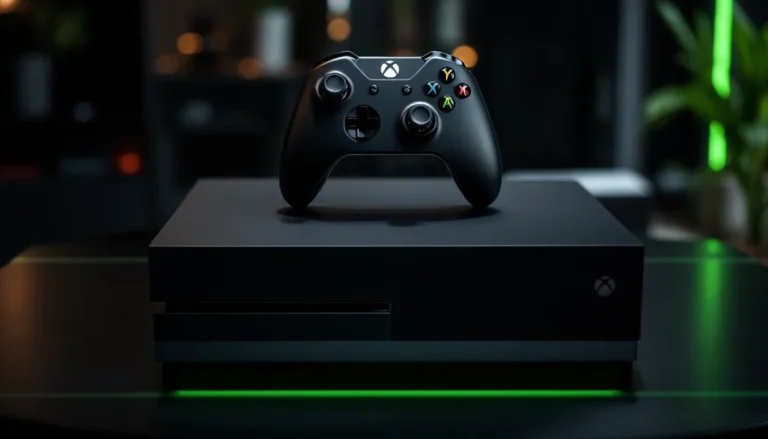
Gaming on a PC can be a blast, but let’s face it—sometimes a keyboard and mouse just don’t cut it. Enter the Xbox One controller, the trusty sidekick that turns any gaming session into a smooth, console-like experience. Whether you’re diving into epic battles or exploring vast worlds, pairing this controller with your PC is the ultimate power move.
Overview of Xbox One Controller Compatibility
The Xbox One controller offers broad compatibility with PCs, supporting both wired and wireless connections. Windows 10 and later versions recognize the controller natively, simplifying the setup process. Users often experience seamless integration without additional software.
Wired connections require a USB cable. Connecting the controller directly to the PC allows for instant recognition. Many gamers prefer this method due to its reliable performance and zero latency.
Wireless connections use Bluetooth technology. The controller supports Bluetooth starting from the Xbox One S model. Ensuring the PC has Bluetooth capability enables users to connect effortlessly without wires.
Compatibility extends beyond Windows. Some users connect the Xbox One controller to macOS and Linux systems. Various gaming platforms support the controller, including popular services like Steam.
Not all features transfer to PC. Certain controller functionalities may not function as intended when gaming on a PC. Understanding these limitations helps gamers adjust their expectations when transitioning from console to PC.
It’s crucial to keep firmware updated for optimal performance. Microsoft regularly releases updates that enhance compatibility and provide improvements. Users can check for updates via the Xbox Accessories app on Windows devices.
Many games support customizable controller settings. Remapping buttons within various games allows players to tailor controls to their preferences. This customization enhances the overall gaming experience, making it more enjoyable and intuitive.
Wired Connection Method

Connecting an Xbox One controller to a PC using a wired method ensures a stable and responsive gaming experience. This approach is straightforward and minimizes potential connectivity issues.
Required Cables and Setup
Using a USB cable is essential for this method. A standard USB to Micro-USB cable works perfectly for connecting an Xbox One controller to a PC. Verify the cable is long enough to allow comfortable movement while gaming. Plug one end of the cable into the controller and the other end into a USB port on the PC. Windows automatically detects the controller and prepares it for use.
Step-by-Step Pairing Process
To pair the Xbox One controller, follow a few simple steps. First, plug the USB cable into both the controller and the PC. Confirm that the controller’s LED light activates, indicating connection. Open game settings on the PC to ensure recognition of the controller. Another option involves accessing the Windows Game Bar, where users can check for connected devices. This process offers an immediate and hassle-free way to enhance the gaming experience with the Xbox One controller.
Wireless Connection Method
Wireless connection offers a flexible way to pair an Xbox One controller to a PC. This method uses Bluetooth or the Xbox Wireless Adapter for easy and efficient setup.
Bluetooth Connection Setup
Using Bluetooth for connection simplifies the pairing process. Start by ensuring the Xbox One controller is in pairing mode. To do this, press and hold the Xbox button, then press and hold the connect button until the Xbox button begins to flash. Next, navigate to your PC’s Bluetooth settings, then turn Bluetooth on. Select “Add Bluetooth or other device,” choose “Bluetooth,” and find “Xbox Wireless Controller” in the list. Click on it to complete the pairing. Once connected, the flashing Xbox button stops and remains illuminated, signaling a successful connection.
Using the Xbox Wireless Adapter
The Xbox Wireless Adapter provides an alternative for connecting wirelessly. Begin by plugging the adapter into a USB port on the PC. Next, press the button on the adapter to enter pairing mode. Hold the connect button on the controller until its Xbox button blinks. The controller’s light will stabilize once paired, indicating a successful connection. This adapter maximizes performance, ensuring low latency and compatibility with multiple controllers, making it ideal for multiplayer experiences.
Troubleshooting Common Pairing Issues
Some pairing issues may arise when connecting an Xbox One controller to a PC. One common issue involves the controller not being recognized by the PC. Ensure the USB cable is properly connected or that the Bluetooth function is enabled on the PC.
In cases where the controller isn’t pairing wirelessly, check whether the device is in pairing mode. Press and hold the Xbox button until it starts blinking, indicating it’s ready to connect. If issues persist, restarting both the controller and the PC can often resolve connectivity problems.
Another frequent challenge happens when the controller connects but exhibits input lag. To minimize latency, move closer to the PC or remove any physical obstacles between the controller and Bluetooth receiver. Updating the controller’s firmware may also alleviate responsiveness concerns.
Users may experience difficulties when pairing multiple controllers. To remedy this, ensure each controller is in pairing mode and within range of the PC. Limiting interference from other devices connected to the same Bluetooth channel can also improve connection stability.
For wired connections, a faulty cable can disrupt gameplay. Test different USB ports on the PC or try another USB to Micro-USB cable to determine if the issue stems from the hardware.
Sometimes, outdated drivers may hinder the pairing process. Check for any available Windows updates to ensure the operating system is current. Updating drivers specifically for the Xbox controller can also enhance compatibility.
If problems continue, consider resetting the Bluetooth settings on the PC. Navigate to Bluetooth settings and remove the controller from the list of paired devices, then attempt to re-pair the controller. By following these troubleshooting steps, users can typically resolve common pairing issues effectively.
Conclusion
Pairing an Xbox One controller to a PC unlocks a world of enhanced gaming experiences. With both wired and wireless options available players can choose the method that best suits their style. The straightforward setup process ensures that gamers can quickly dive into their favorite titles without hassle.
By keeping firmware updated and customizing settings players can further optimize their controller for peak performance. Troubleshooting common issues is also manageable with the right steps in place. Embracing the Xbox One controller for PC gaming not only elevates gameplay but also brings a comfortable and familiar feel to the experience.